
Account Cannot Be Selected in Telegram Expert: How to Find the Cause and Fix the Selection
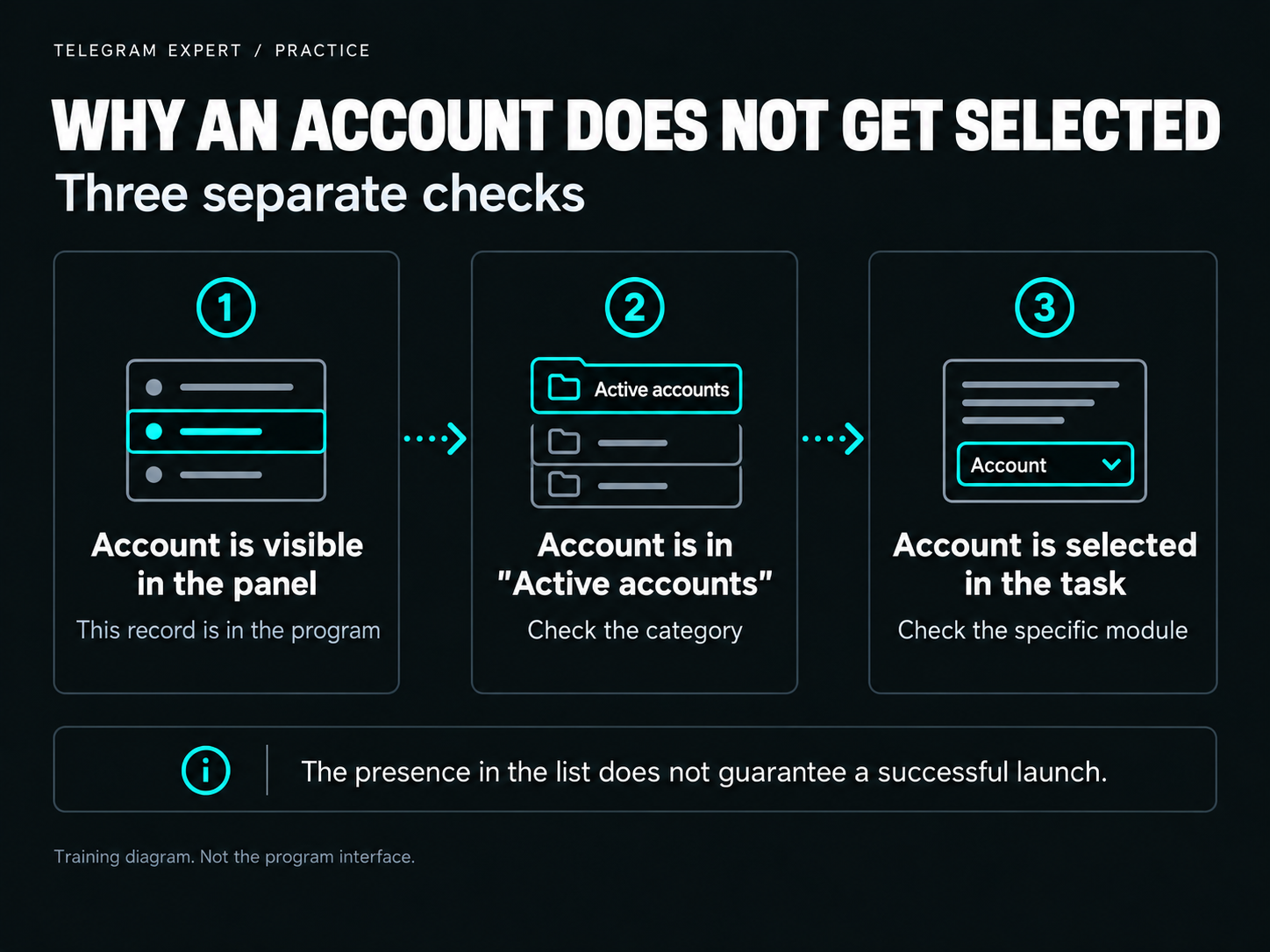
The account has already been added to Telegram Expert and appears in the panel, but it is missing from the list when you configure the autoresponder or another working module. This can happen, for example, when the account is stored in another folder. Sometimes the required profile is hidden by search or filter conditions. In other cases, the account is available, but the user has not yet selected it in the task settings.
Telegram Expert lets you manage multiple Telegram accounts from one panel: organize them into folders, find the required records, select them for actions, and check restrictions. To identify the stage where the issue occurs, it is enough to check one problematic account step by step. Start with its location in the program.
Why the Account Is Visible in the Panel but Missing from the Working Module
In Telegram Soft Expert, accounts are distributed across folders. These include “Active”, “Archive”, “Temporary SpamBlock”, “Eternal SpamBlock”, “Premium”, “Frozen”, and “Deleted”. These sections help store records and perform actions with them in the account panel.
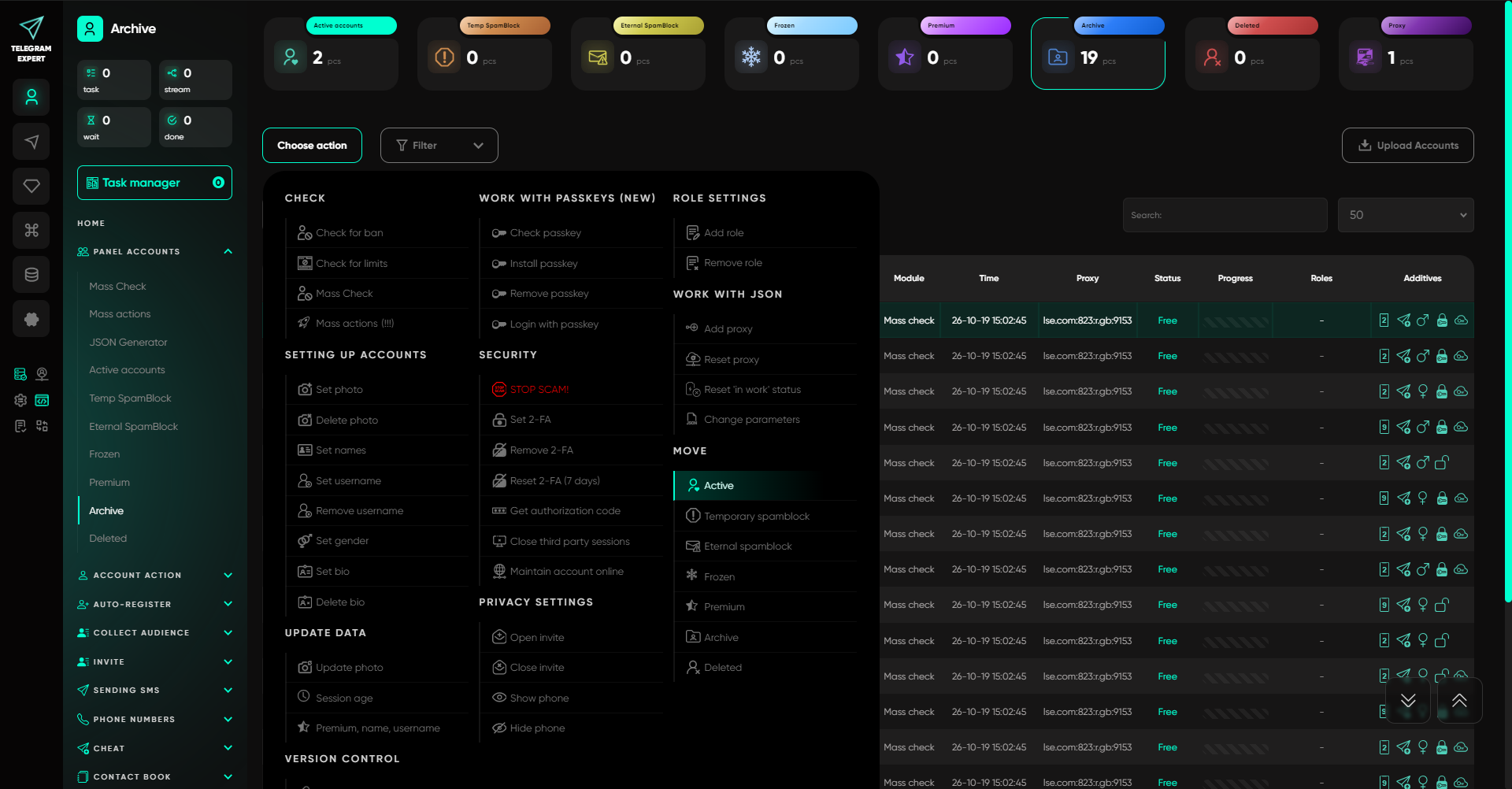
For work through modules, the “Active” folder is used. For example, when configuring the autoresponder, the “Select Accounts” field shows accounts from this section. Therefore, an account that was previously moved to “Archive” remains visible in the program but is not offered for use in the autoresponder.
These folders can also be used to organize accounts according to your own workflow. A folder name such as “SpamBlock” or “Active” does not by itself confirm the current state of the Telegram account. A separate check is required to determine whether the account has a restriction.
If the account is needed for a working task, open the folder where it is currently located. Select the required record, click “Choose Action”, then “Move”, and specify “Active”. After moving it, open the required module and check the account list again.
How to Find an Account in Telegram Expert If It Is Not in the List
When the panel contains many accounts, first make sure that the required row is actually missing. The displayed list depends on the search query, active filters, and the number of rows shown per page.
Check Search by Phone Number, Name, or Username
The panel has a Search field. You can use it to find an account by phone number, name, or username — the public user name that begins with @. A neighboring setting controls how many accounts are displayed on one page.
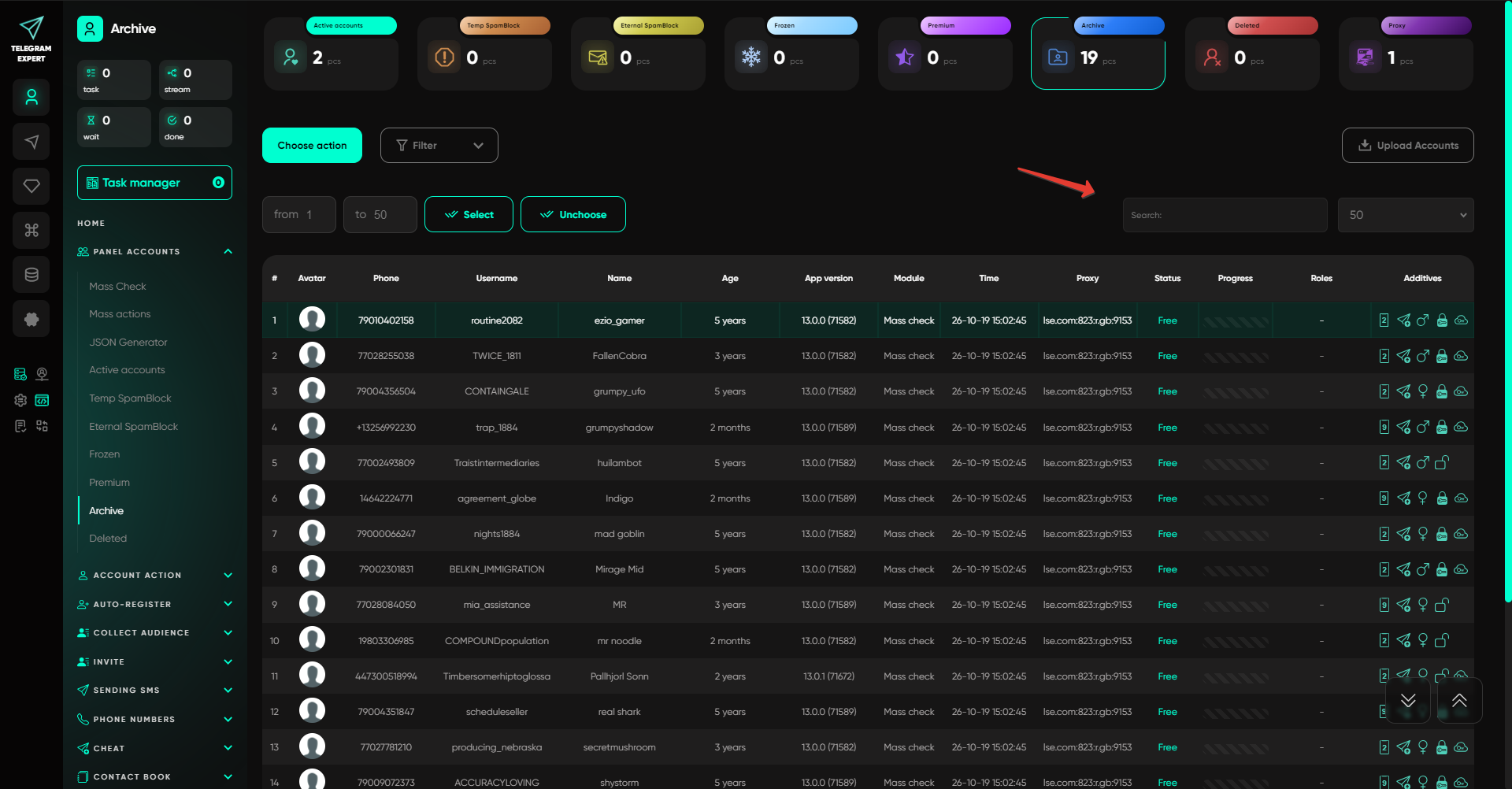
Clear the previous search query if it remained after another task. Then enter the details of the specific account. Pay attention to the selected number of rows per page, especially when you work with a large group of profiles.
Remove Filters That Exclude the Required Profile
Filters select accounts according to specific attributes. Telegram Expert provides conditions for avatar, username, account age, two-factor authentication, geographic attribute, and assigned role.
For example, after filtering for profiles without an avatar, only accounts that match this condition remain in the list. To find a profile with a photo, change the filter or remove the condition. In the same way, check the role filter and other parameters if you used them earlier.
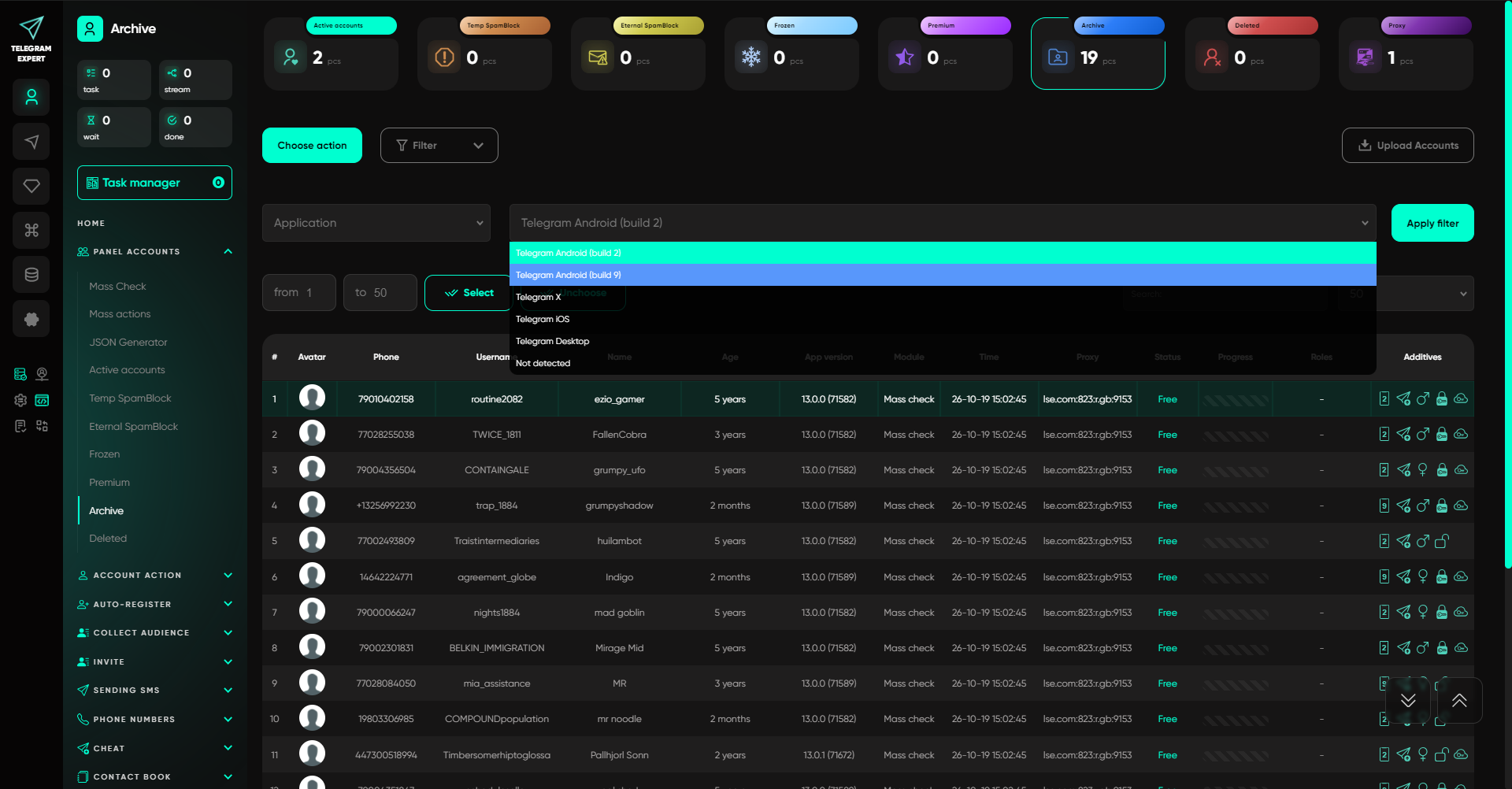
After clearing the search and filters, repeat the check in the folder where the account should be located. If it appears, you can proceed to selecting it for the task.
How to Select an Account Correctly for an Action or the Autoresponder
The account panel and the settings of each working module have their own account-selection actions. First determine exactly where the problem occurs.
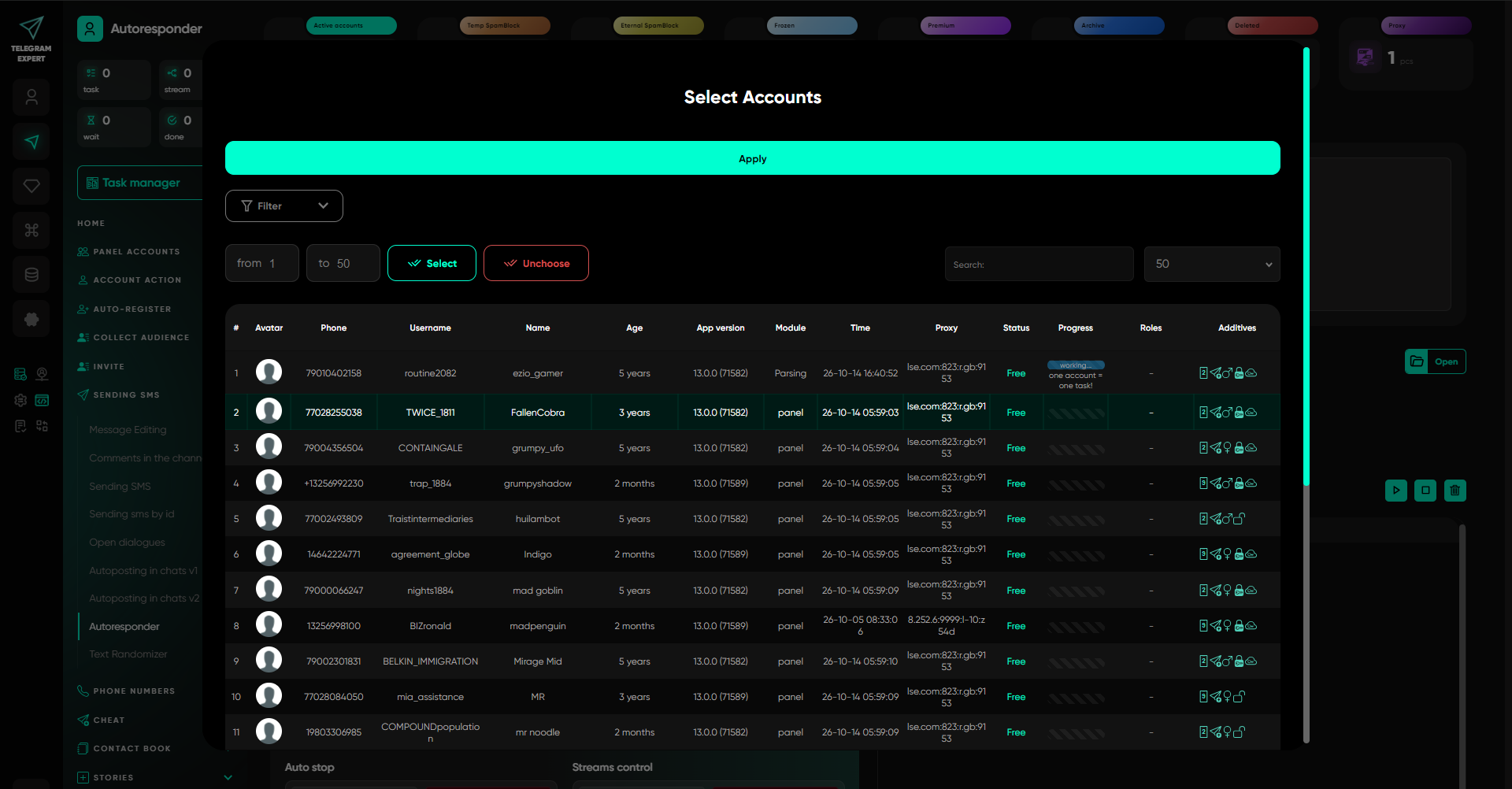
If you need to perform an action from the panel, open the required folder and select the accounts to which the action should apply. For working with a group, Select lets you mark records within a specified range, while Choose all selects all accounts. After selecting the records, open “Choose Action” and choose the required operation.
If you are configuring a working module, open its own account-selection control. In the autoresponder, for example, it is called “Select Accounts”. Here you specify the profiles from which automatic replies will be sent. First make sure that these profiles are present in the “Active” folder.
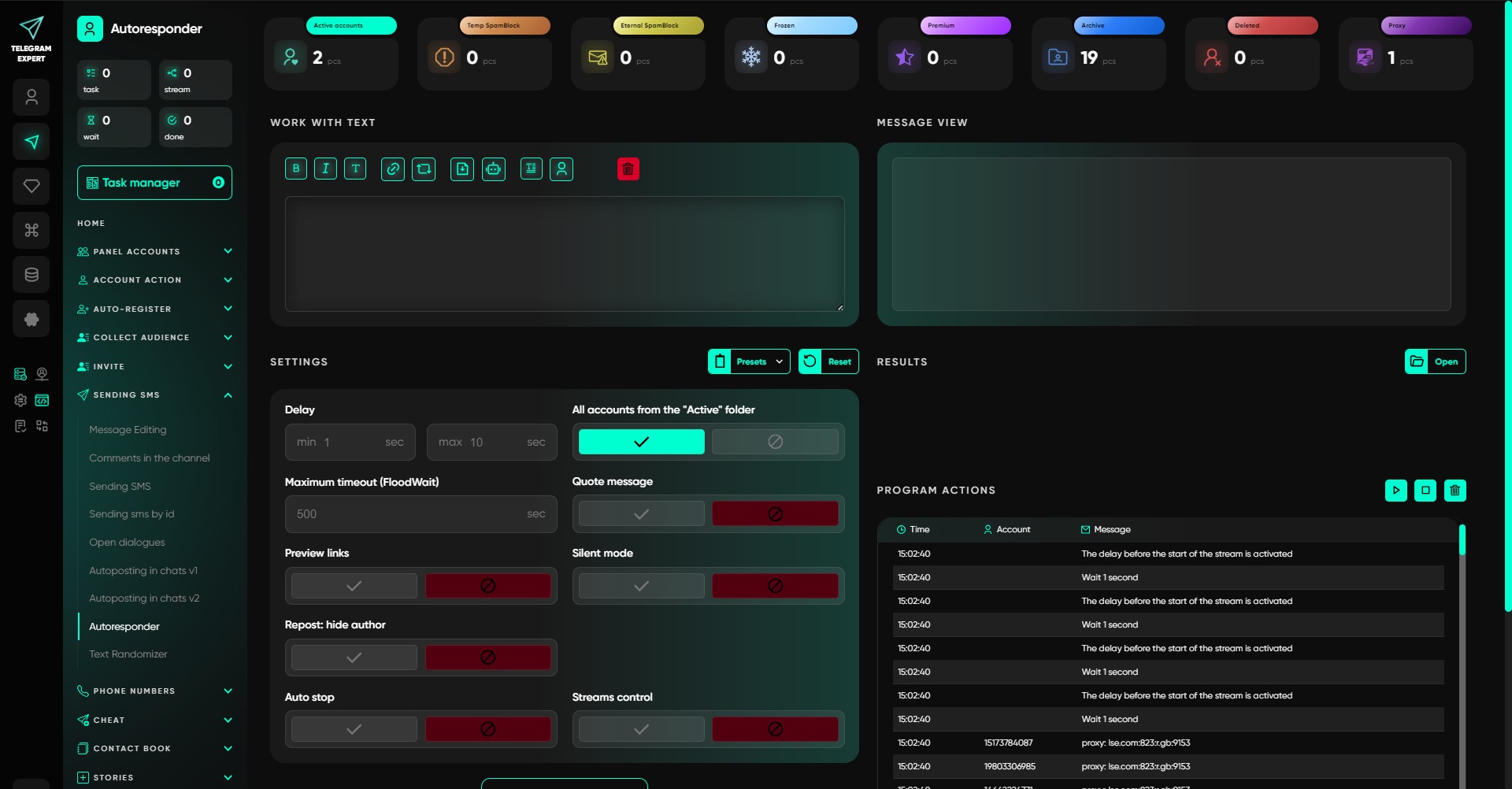
It is more convenient to start with one account. Check the phone number or username so that you do not accidentally select a neighboring profile with a similar name. Then configure the required action and verify its result. This approach is especially useful when the panel already contains a large group of accounts.
What to Check If the Account Did Not Appear After Import
If the required record is missing even from the panel, check how the account was added. Telegram Soft Expert supports different ways to work with existing accounts, including adding by phone number and using supported Session and TDATA formats. The requirements depend on the selected method.
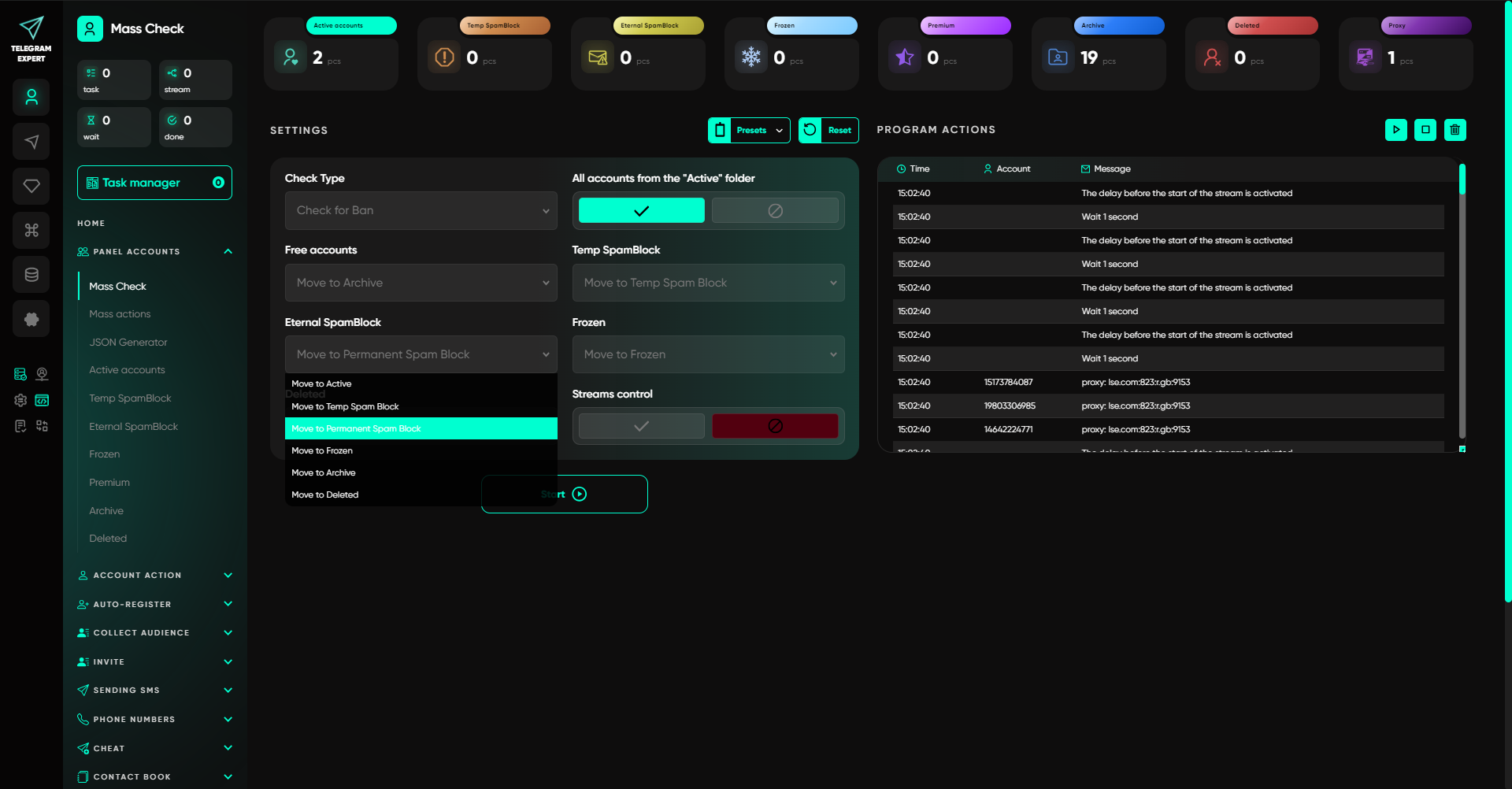
For the “Load Accounts” command, the JSON + Session format is supported. Session contains the authorized session data, while JSON stores the related parameters in a structured form. With this method, the files are placed in the Active folder, after which the list is refreshed with F5 or the “Active Accounts” section is opened again.
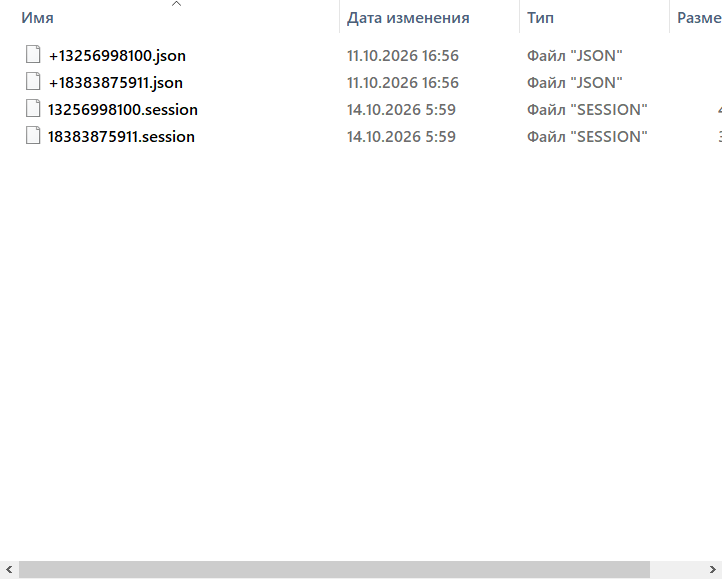
Make sure the files were prepared specifically for the selected import method. If the record appears in the panel after refreshing, find it in “Active” and return to account selection inside the module. For other methods of adding accounts, follow the setup procedure specific to that method.
Troubleshooting Table: What to Do for Different Symptoms
What happens | What to check | Next action |
|---|---|---|
The account is in “Archive” but missing from the autoresponder | The folder from which the module selects accounts | Move the required record to “Active” if necessary |
Only some accounts are displayed in the panel | Search, filters, and the number of rows per page | Remove unnecessary conditions and search again |
The account is found, but the action runs with other records | Which accounts are selected before the operation starts | Clear the extra selection and select the required profiles |
No new record appears after import | Import method, file format, and list refresh | Check the requirements of the selected adding method |
The account was in “Active” but moved to another folder after the check | Folder distribution settings in “Bulk Check” | Match the folder to the check result |
The account can be selected, but the task does not run | Launch result and error text | Proceed to checking the account state or the cause of the error |
In “Bulk Check”, you can assign folders in advance for different results. Therefore, after this operation, the profile location may change according to the check settings. If an account moves unexpectedly, first check which folders were specified for each result.
The Account Is Selected, but the Task Does Not Run
If the profile is present in the module list and selected for work, check what happened after launch. Save the exact error message and the name of the operation. They will help separate an account-selection issue from problems that occurred during execution.
The Telegram Expert panel provides two different account-status checks:
Ban check. The program checks the account using the added session.
Restriction check. The account contacts @SpamBot to obtain information about Telegram restrictions, including SpamBlock and GeoSpamBlock.
Choose the appropriate check based on the problem you observe. An account being in “Active” does not mean that it will successfully complete every task. Execution may also depend on the state of the account itself and the conditions of the specific operation.
When to Use “Remove ‘In Progress’ Status”
The actions menu includes an option to remove the “in progress” marker from selected accounts. Use it only after you have determined why the record still has this marker. Removing the marker by itself does not confirm that a previously launched task was completed and does not eliminate the causes of other errors.
If the purpose of the marker or the state of the current task is unclear, save its name and visible status before contacting support. This makes it easier to investigate the specific operation without accidentally changing several settings at once.
How to Make Sure the Account Is Available for the Task Again
After fixing the issue, check the result step by step. Find the required profile by its details, make sure it is in “Active”, then open the working module and see whether the account is available in the selection field. Select it and test the appropriate action in your own working scenario.
If the account appears in the list, the selection problem has been resolved. Evaluate the success of the operation by its actual result. If the error occurs again, save the error text, the module name, and the step at which it occurred.
Tools in the Telegram Expert account panel are available for moving and checking accounts. If you need to clarify how to select and move profiles, open the account action settings.

Download Telegram Expert - software for Telegram promotion
Telegram Expert is professional software for fast channel growth and sales in Telegram. Launch mass mailings and invites, warm up accounts without bans, consolidate dialogs in one place, and scale your team. All in one window - fast, safe, and tailored to your tasks.
What it can do:
- TDATA Converter - массово переводит session+json в TDATA.
- Booster - account warm-up via smart dialogs to increase trust.
- Registrar - account creation via any SMS services with the sms-activate standard.
- Duplicator - a second session for existing accounts for transfer and protection.
- Forwarder - routes incoming replies to a working group and sends replies to clients.
- Interceptor - catches messages by keywords from chats/channels and forwards them to you.
- Invite via admin - invitations even to restricted groups.
- Channel and chat cloner - full copies, including protected content.
- Reporter - mass complaints about messages/users/channels.
No one has left a comment yet
Duplicator
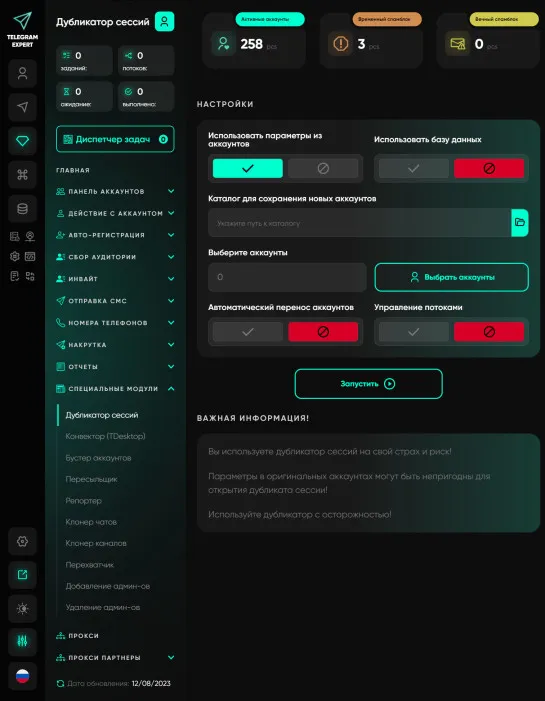
A module for opening an additional session on an account. The module is very useful and simply irreplaceable in your work. Opening a second session allows you to protect yourself from unscrupulous account sellers, test parameters and pairs, and perform mass actions in several copies of the program on the same accounts simultaneously. Let's consider the standard situation Let's say we need to send messages from 1000 accounts, and we want the accounts to automatically respond if prospects reply to...
What Are Telegram Gateways, How Do They Work, and How to Use Them?
Telegram network gateways route the app’s connection through an intermediary server before it reaches Telegram’s infrastructure. They can support authorized regional testing, separate work environments, and more consistent connection routes for business operations. According to Statista, Telegram’s global user base represented 11.6% of the world’s population in 2025. Such a broad international reach makes stable, location-aware connection settings relevant for teams that use Telegram across d...
How to Manage Multiple Telegram Accounts: Tools and Best Practices
Preview: Running multiple Telegram accounts for marketing? This guide covers what Telegram's anti-spam system actually detects, how to choose the right gateway type, and a step-by-step warm-up schedule that keeps your accounts alive long-term. Running multiple Telegram accounts is standard practice for any serious marketing operation. You need separate accounts for different campaigns, client projects, geographic regions, or A/B testing message strategies. A single account simply can't cover ...

How We Run 50+ TikTok and Instagram Accounts: A Practical Setup Guide with Antidetect Browsers and Mobile Network Tools
If you are trying to drive traffic to a Telegram channel, a CPA offer, or an online store in 2026, short-form video is still the most reliable free organic channel available. Posting three clips a day on a single personal account rarely brings consistent volume. But when you manage 50 accounts posting three clips daily, you publish 150 videos every single day. Even if 40 of those videos get only 600 views, a handful will catch the algorithm and hit 50,000 to 200,000 views, sending h...